
- Navigate to google.com
- In the top right corner of the screen click “sign in”
- If this isn’t an option, you may already be signed in. If this is the case, open an incognito tab or private ta
- On Chrome on a PC you can use the keyboard shortcut “Ctrl+Shift+N” to open an new incognito tab
- On Firefox on a PC you can use the keyboard shortcut “Ctrl+Shift+P"
- Once you have done this – go back to step one using the incognito/private tab
- If this isn’t an option, you may already be signed in. If this is the case, open an incognito tab or private ta
- Select “Create Account”
- Select the blue text in the middle of the screen that says “Use my current email address instead”
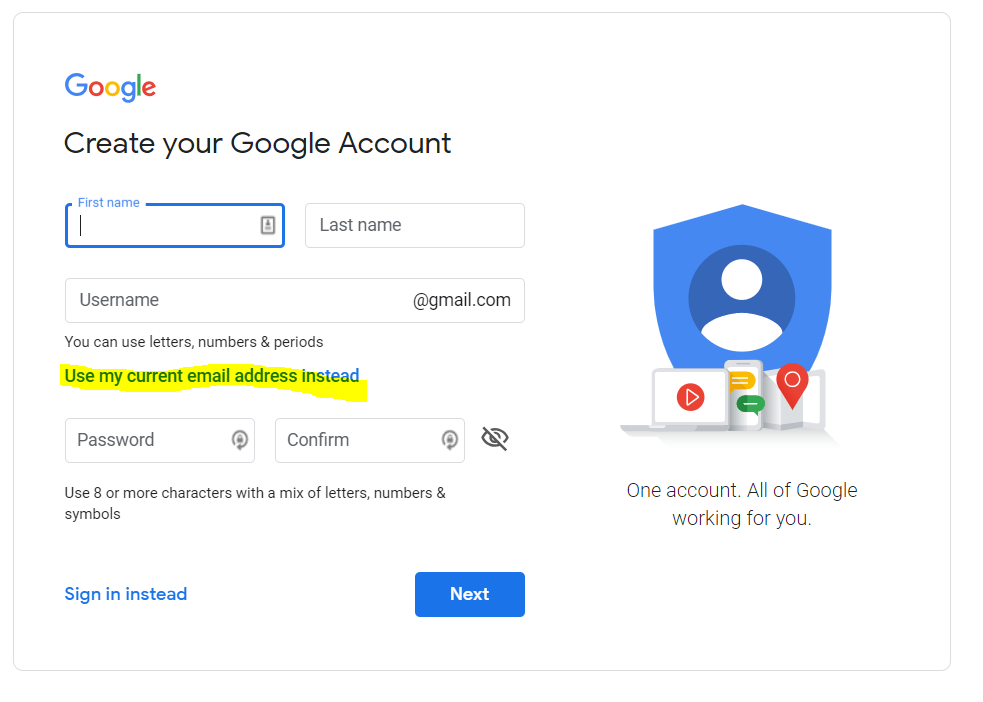
- Use your Site email account (ex. FreedomPark@goape.com)
- For the name you can use the site or park name
- Once you have pressed “next” you will need to verify your email address.
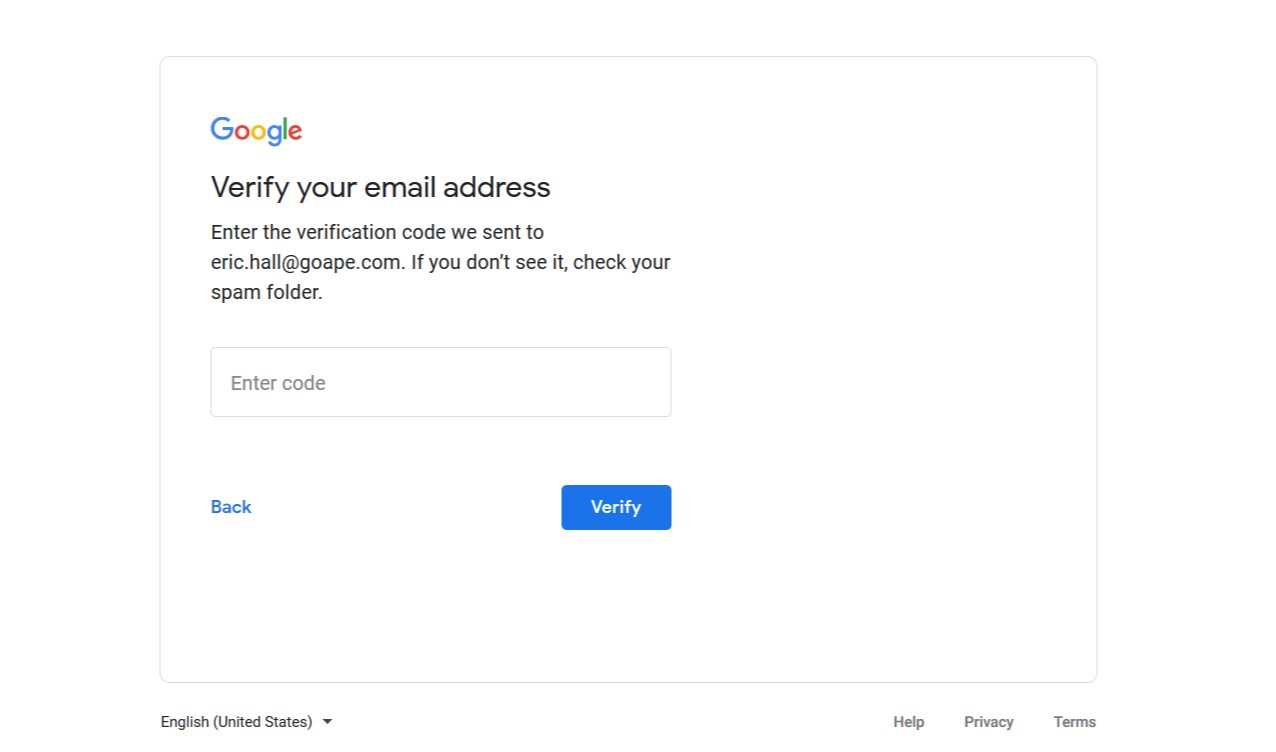
- Open your site email account that was used above
- Retrieve the code (copy it)
- Go back to the web browser where it was asking for the verification code
- Paste the verification code
- The next screen will ask for your phone number, age and gender.
- Use the site phone number here
- Make the account age over 21 years old (DO NOT use the year your course opened)
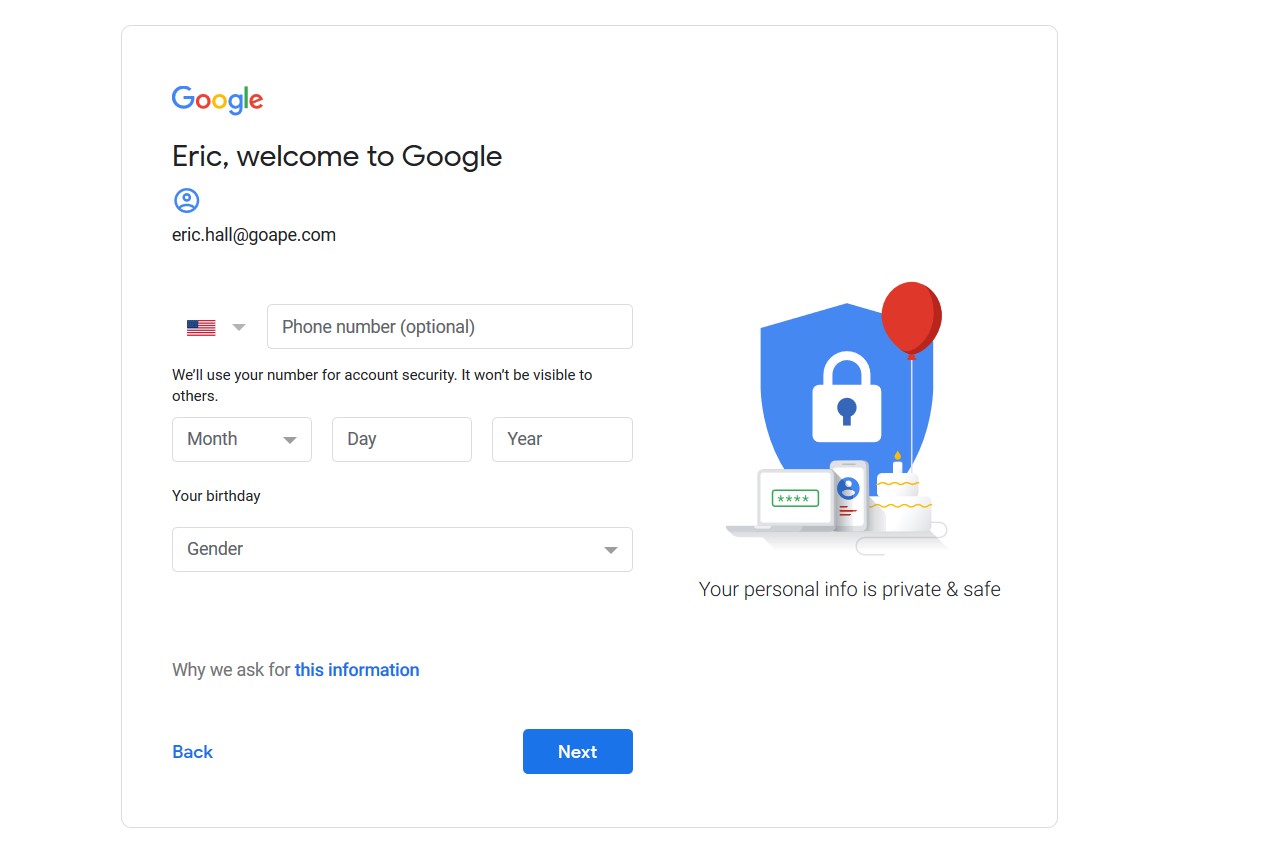
- Use the site phone number here
- Make the account age over 21 years old (DO NOT use the year your course opened)
- Click Next
- All done – you can use your newly connected account to login on the J3 smartphone to download and install apps from the Google Play store.
Setting up a Google Play account using your Microsoft Account Print
Modified on: Fri, Mar 8, 2019 at 1:12 PM
Did you find it helpful? Yes No
Send feedbackSorry we couldn't be helpful. Help us improve this article with your feedback.